How to Enable or Disable Windows 11 Notifications

notifications-in-windows-11/" class="sal-link" rel="noopener" target="_blank" data-sal-id="9687">Notifications in Windows 11 are alerts and messages that pop up on your screen. They give you important information and updates from your apps. But too many notifications can be distracting.
Why manage notifications? Keeping notifications on helps you stay informed about important updates. Turning them off helps you focus and avoid interruptions. What happens when done? You gain control over your digital workspace, ensuring only the alerts that matter reach you.
Turn Notifications On or Off in Settings
Windows 11 notifications can be enabled or disabled through the Settings app by navigating to System, clicking Notifications, and toggling the switches based on your preference.
- Open the Windows Settings app.
- Click System on the left side.
- Click the Notifications tile on the right.
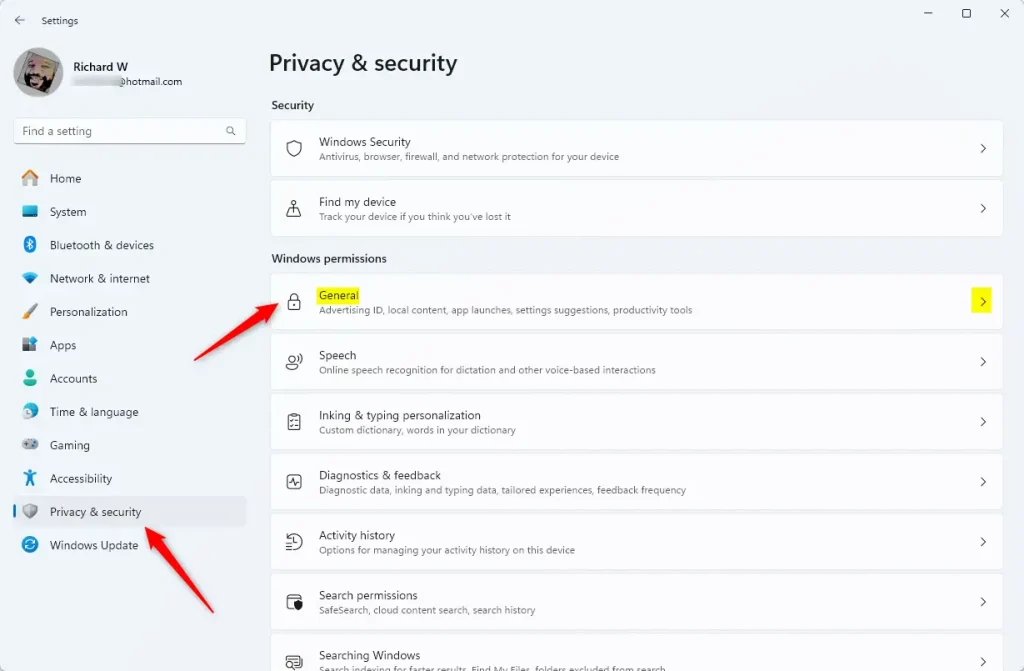
- Toggle the main Notifications switch to On or Off.
- You can also scroll down to toggle notifications for specific apps.
- Close the Settings app when done.
Customizing Notification Banners and Sounds
You can control how notifications appear. In the Notifications menu, click the arrow next to an app to change settings. You can turn off Notification banners to stop pop-ups while keeping them in the Notification Center. You can also toggle Play a sound when a notification arrives to keep things quiet.
Using Do Not Disturb and Focus Sessions
Do Not Disturb mode silences all alerts. You can set this up in System > Notifications > Do not disturb. You can set automatic schedules so your computer stays quiet during work hours. Focus sessions go further by integrating with the Clock app to block distractions and track your productivity.
How to Access the Notification Center
The Windows 11 Notification Center is where all your missed alerts live. Click the date and time in the bottom-right corner of your taskbar to open it. You can clear all notifications by clicking Clear all at the top right of the panel.
Troubleshooting Missing Notifications
Why are my Windows 11 notifications not showing up? Check if Focus Assist or Do Not Disturb is active. Ensure the app has permission to send alerts in the Notifications settings menu. If issues persist, verify that your system is updated via Windows Update.
Advanced Control via Registry Editor
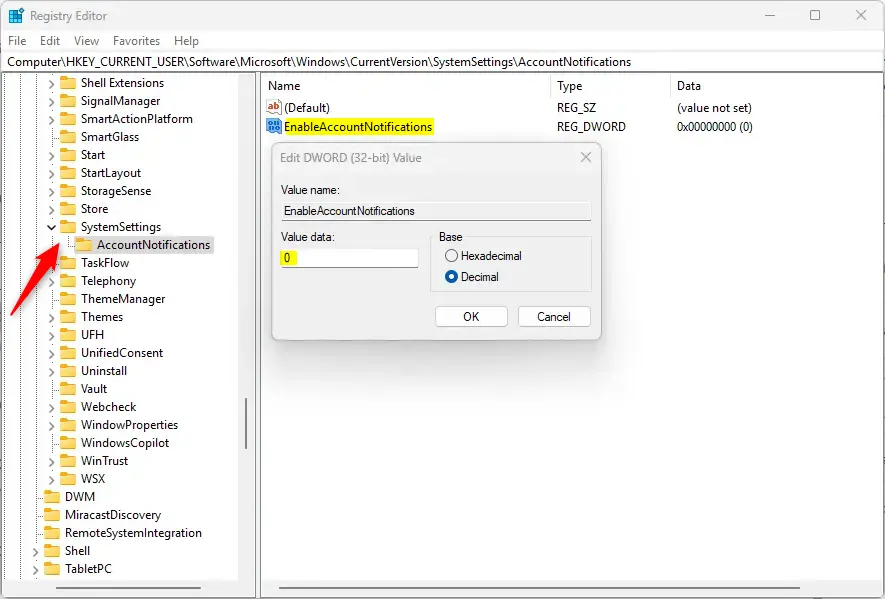
The Registry Editor offers advanced control by modifying the EnableAccountNotifications value. ⚠️ Admin privileges required.
- Open the Windows Registry editor as administrator.
- Navigate to:
HKEY_CURRENT_USER\Software\Microsoft\Windows\CurrentVersion\SystemSettings\AccountNotifications - Find EnableAccountNotifications.
- Double-click to set the value to 1 (on) or 0 (off).
Summary
Managing Windows 11 notifications is essential for maintaining focus. By using the Settings app, you can toggle global alerts, customize app-specific banners, and set up Do Not Disturb schedules. For advanced users, the Registry Editor provides deeper system control. Always remember to check your Focus settings if alerts seem to be missing.
How do I hide notification content on the lock screen?
To hide content on the lock screen, go to Settings > System > Notifications. Expand the Notifications section and uncheck the box labeled Show notifications on the lock screen. This ensures that sensitive information remains private even when your computer is locked and unattended by you.
Was this guide helpful?




[…] Notification Center (Win+N) in Windows 11 allows quick access to notifications, the calendar, and the ability to start or end a focus session from a taskbar […]